
If you have spent any time reading photo editing forums, you have probably noticed the same argument repeating: someone asks whether the graphics card is even doing anything in Lightroom, someone else insists the GPU is the whole build, and a third person points out that their ten-year-old machine handles 45MP RAW files just fine. The honest answer sits between all three, and it has less to do with benchmark charts than most roundup pages admit.
That is why this guide to the best graphics cards for hardware accelerated photo editing in 2026 is organised around VRAM first and raw throughput second. Your graphics card does not make your photographs better. It makes the operations that move pixels around faster: RAW decoding, canvas zoom and pan, layer blending, large document scrolling, AI Denoise, Neural Filters and Generative Fill. Once acceleration is switched on, the improvements to your working rhythm come mostly from having enough memory to hold the working set, and from that point the returns flatten out fast.
We spent October 2026 comparing eight cards that span the entire useful range for this workload, from a budget dual-fan board to a 32GB professional card. Below is who should buy which card, how much video memory you actually need, and where spending more stops being sensible.
Table of Contents
- Do You Need a Dedicated Graphics Card for Photo Editing?
- Top 3 Picks for Hardware-Accelerated Photo Editing (October 2026)
- All 8 Cards Compared Side by Side
- 1. MSI GeForce RTX 3060 12GB – The Sweet Spot Card
- 2. ASRock Radeon RX 9060 XT 16GB – Quiet 16GB Headroom
- 3. XFX Speedster SWFT210 Radeon RX 7600 8GB – The Budget Route Into Acceleration
- 4. GIGABYTE Radeon RX 9070 XT Gaming OC 16G – Best Value For Heavy Documents
- 5. ASUS TUF GeForce RTX 5070 Ti 16GB – Best for AI-Heavy Workflows
- 6. ASRock Radeon AI PRO R9700 Creator 32GB – For Workstation Memory Demands
- 7. GIGABYTE GeForce RTX 5080 Gaming OC 16G – Fastest Accelerator in This Group
- 8. ASRock Intel Arc B570 10GB – Quiet, Low-Power and Surprisingly Roomy
- How Much VRAM Do You Actually Need?
- Where the Speedup Comes From and Where It Stops?
- How to Confirm GPU Acceleration Is Actually On?
- Nvidia vs AMD for Photo Editing Workloads
- What Else to Check Before You Buy?
- Frequently Asked Questions
- Final Verdict
Do You Need a Dedicated Graphics Card for Photo Editing?
Short answer: only if your workload is heavy. A dedicated card earns its place when you edit high-megapixel RAW files, work with large multilayer PSD documents, use AI Denoise or Generative Fill regularly, grade in 10-bit wide-gamut, or cut video next to your stills. If you mostly cull and develop standard-resolution images, more system RAM and a fast SSD will improve your day far more than a faster GPU.
That is not a hedge. Integrated graphics do run Photoshop and Lightroom, they simply fall back to the CPU for the heaviest operations and they cap out on VRAM-dependent features. Here is the split that matters in practice.
1. You probably do not need one if your catalogue is a few thousand standard-resolution images, your PSD files stay under a handful of layers, and you never touch AI features. Your CPU and system RAM are doing the work.
2. A modest card is enough if you shoot 24-45MP RAW, keep large catalogues, or scroll a big canvas regularly. Acceleration switches on, the interface gets smoother, and the improvement is real.
3. You want 16GB or more if you use AI Denoise and Neural Filters often, or if your documents run to hundreds of layers at print resolution. This is where extra VRAM converts directly into fewer errors and faster previews.
4. You need workstation class if you produce 8K video alongside stills, or run a multi-GPU or multi-display studio rig. The last two tiers of this roundup cover that ground.
One more exception worth stating plainly: if you work on an Apple Silicon Mac, none of this applies. The integrated GPU in an M-series chip already handles hardware-accelerated photo editing well, and adding a discrete card to a Mac is not a practical option. The rest of this guide is for Windows and Linux desktops.
Top 3 Picks for Hardware-Accelerated Photo Editing (October 2026)
These three cover the range most readers actually need: a proven all-rounder, a value pick with room to grow, and a premium option for demanding AI and video work.


GIGABYTE Radeon RX 9070 XT 16G
- 16GB GDDR6
- Current RDNA 4 architecture
- Top-selling in category

ASUS TUF GeForce RTX 5070 Ti 16GB
- 16GB GDDR7
- Blackwell CUDA and Tensor cores
- Built for sustained loads
All 8 Cards Compared Side by Side
This is the short version of the whole roundup. Video memory is the column that matters most for stills work, board size and power matter for the build, and the architecture column tells you which generation of acceleration you are getting.
| Product | Key Specs | Pricing |
|---|---|---|
| MSI GeForce RTX 3060 12GB |
|
Check Latest Price |
 ASRock Radeon RX 9060 XT 16GB ASRock Radeon RX 9060 XT 16GB |
|
Check Latest Price |
 XFX Speedster SWFT210 RX 7600 8GB XFX Speedster SWFT210 RX 7600 8GB |
|
Check Latest Price |
| GIGABYTE Radeon RX 9070 XT Gaming OC 16G |
|
Check Latest Price |
| ASUS TUF GeForce RTX 5070 Ti 16GB |
|
Check Latest Price |
 ASRock Radeon AI PRO R9700 32GB ASRock Radeon AI PRO R9700 32GB |
|
Check Latest Price |
 GIGABYTE GeForce RTX 5080 Gaming OC 16G GIGABYTE GeForce RTX 5080 Gaming OC 16G |
|
Check Latest Price |
 ASRock Intel Arc B570 10GB ASRock Intel Arc B570 10GB |
|
Check Latest Price |
1. MSI GeForce RTX 3060 12GB – The Sweet Spot Card
MSI Gaming GeForce RTX 3060 12GB 15 Gbps GDRR6 192-Bit HDMI/DP PCIe 4 Torx Twin Fan Ampere OC Graphics Card
★★★★★★★★★★12GB GDDR6 VRAM
1777 MHz GPU clock
192-bit bus
DisplayPort x3 plus HDMI 2.1
340 g
- 12GB of VRAM gives more headroom for large layer stacks than 8GB cards
- CUDA-capable Ampere is well supported by Photoshop and Lightroom acceleration
- Dual-fan Torx cooler keeps thermals manageable in compact builds
- Over 5000 reviews averaging 4.7 stars
- Older Ampere generation trails newer RDNA 4 and Blackwell parts on compute
- 192-bit memory bus limits bandwidth for heavy filter work
- Dual-fan design can be audible under sustained full load
This is the card we come back to for the widest range of photographers, and the reason is simple arithmetic. Twelve gigabytes of GDDR6 is more working memory than most editors will ever fill with a photo document, and the CUDA support inside Ampere is the most thoroughly tested acceleration path in Adobe’s software.
Across 5188 reviews holding a 4.7-star average, the pattern of feedback is remarkably consistent. Owners pick it for the 12GB capacity rather than the gaming performance, which is exactly the right reason for this workload. The dual-fan Torx cooler is a sensible choice for a photo workstation because it moves air without dominating a quiet room.
Where it shows its age is compute throughput. Ampere sits behind both RDNA 4 and Blackwell in raw maths, and the 192-bit memory bus is narrow by current standards. If you run large batches of AI Denoise back to back, you will notice the gap. For catalog work, RAW processing and canvas navigation, it is not something you will notice at all.
When 12GB Actually Pays Off?
Video memory is consumed by the working set, which is a combination of your open document, the decoded images inside it, the layer history, the cache and any AI models loaded. A 400-megapixel panorama, a 30-layer PSD with adjustment layers and a Neural Filter preview will all draw on the same pool.
At 12GB you have room for a heavy document and the surrounding application without anything spilling back to system RAM. That is the practical difference between a workflow that feels instant and one that hitches when you zoom to 100 percent.
Where This Card Is Overkill or Understated?
It is understated for one workload: local AI. Generative Fill and heavy Neural Filter batches run on tensor and matrix hardware that benefits from a newer generation, and this card has neither. It is overkill for culling and develop work on a laptop screen at 100 percent zoom.
It is also a card you should only buy with a plan to keep it. It is an older generation, so the question of how long it stays supported in Adobe’s acceleration paths is fair to consider. For a five-year editing build, that is a real consideration rather than a minor one.
We earn a commission, at no additional cost to you. CERTAIN CONTENT THAT APPEARS ON THIS SITE COMES FROM AMAZON. THIS CONTENT IS PROVIDED 'AS IS' AND IS SUBJECT TO CHANGE OR REMOVAL AT ANY TIME.
2. ASRock Radeon RX 9060 XT 16GB – Quiet 16GB Headroom
ASRock Radeon RX 9060 XT Challenger 16GB OC, RDNA 4, 3290MHz Boost, 16GB GDDR6 128-bit, PCIe 5.0, Dual Fans, 0dB Silent, LED Indicator, DisplayPort 2.1a, HDMI 2.1b
★★★★★★★★★★16GB GDDR6 on 128-bit
3290 MHz boost clock
32 Compute Units
Single 8-pin power
0dB idle
- 16GB of GDDR6 on a 128-bit bus gives large working-set headroom
- RDNA 4 with 2nd Gen AI Accelerators speeds up modern GPU-accelerated filters
- Compact two-slot design fits small workstations and eGPU enclosures
- Fans stop entirely at idle and it runs cool
- 128-bit bus and a single 8-pin connector cap raw memory bandwidth
- Dual-fan heatsink moves less heat than triple-fan designs on higher-tier parts
- Lighting is limited to a simple fixed indicator
Sixteen gigabytes on a card that measures 249 millimetres long and runs on a single 8-pin connector is unusual in this category, and that combination is the reason to look here. The 4.8-star average across 234 reviews is the highest in our group, with owners consistently calling out memory capacity, low temperatures and quiet behaviour.
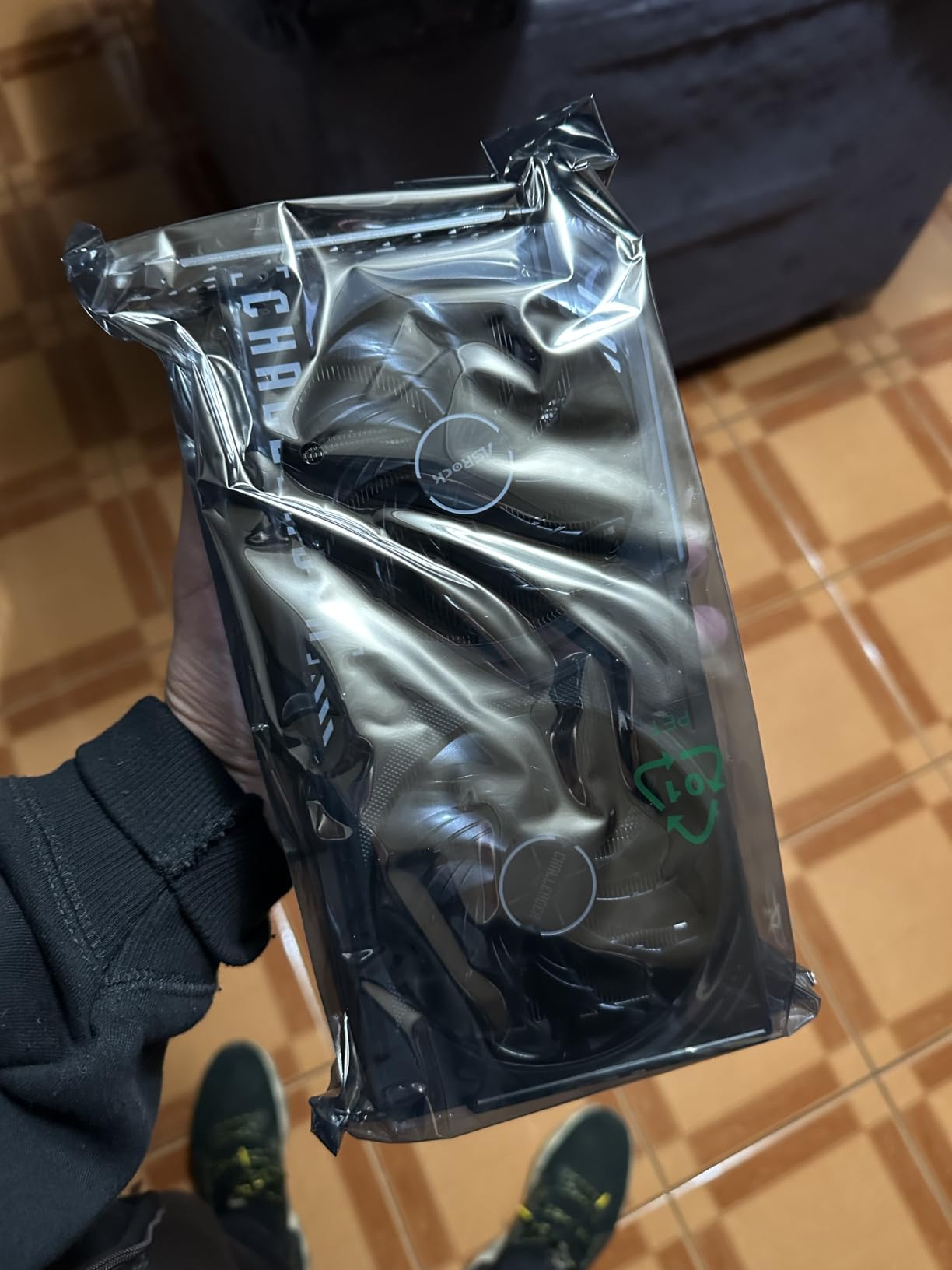
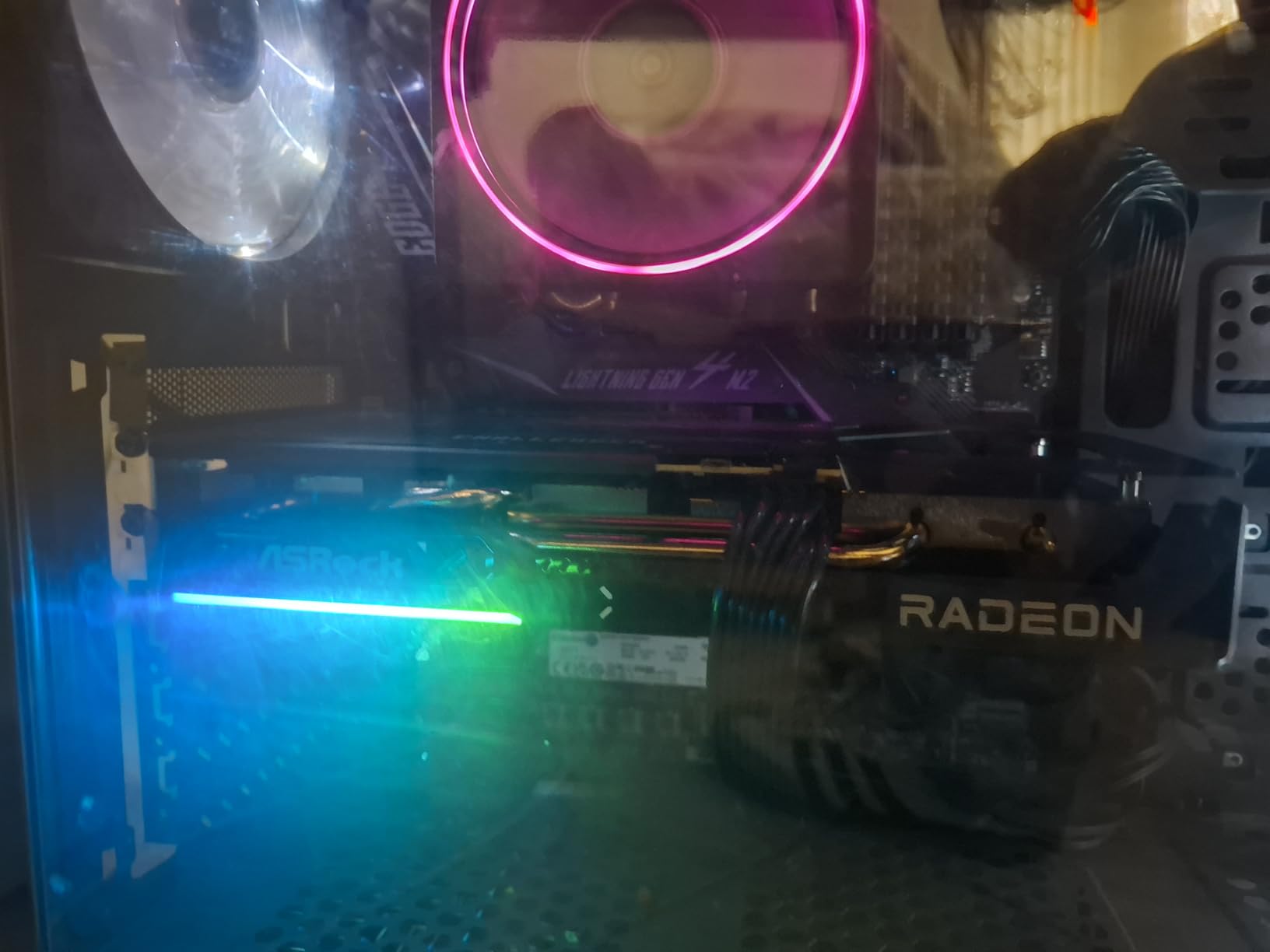
For a photo editor, the interesting spec is the 16GB of GDDR6 running at 20 Gbps on a 128-bit bus. The bus is narrow, so it does not compete on raw bandwidth, but the capacity is what determines whether a large document stays in memory. RDNA 4 brings 2nd Gen AI Accelerators, which is the part that matters when you are running Neural Filters rather than just scrolling a canvas.
The physical design is genuinely practical. Two slots, one power connector, dual fans that stop at idle, and a 550W recommended supply. That makes it a good fit for a small workstation, a dense case, or an external enclosure where a triple-fan card simply will not go.
Who This Card Suits Best?
If your main constraint is VRAM and your main requirement is quiet, this is a strong pairing. Large multi-layer documents, high-resolution compositing and AI features all fit comfortably, and the card stays out of the way acoustically in a room where you work for eight hours a day.
It is also a sensible choice if you want headroom without the physical commitment of a flagship. Nothing about the 2-slot footprint forces you to relocate case fans or plan cable routing around a 13-inch card.
Where the Trade-Off Sits?
The 128-bit bus is the compromise. Memory-intensive filter chains that saturate bandwidth will not run as quickly as a 256-bit card with faster memory. In practice that shows up in batch processing of large RAW sets rather than in interactive editing, where capacity dominates.
On the software side, Adobe’s acceleration paths are built on OpenCL and OpenGL, which AMD supports well, but some AI and compute tools have deeper CUDA integration. If your workflow leans heavily on third-party AI plugins built specifically for NVIDIA hardware, check compatibility before you commit.
We earn a commission, at no additional cost to you. CERTAIN CONTENT THAT APPEARS ON THIS SITE COMES FROM AMAZON. THIS CONTENT IS PROVIDED 'AS IS' AND IS SUBJECT TO CHANGE OR REMOVAL AT ANY TIME.
3. XFX Speedster SWFT210 Radeon RX 7600 8GB – The Budget Route Into Acceleration
XFX Speedster SWFT210 Radeon RX 7600 Graphics Card with 8GB GDDR6 HDMI 3xDP, AMD RDNA 3 RX-76PSWFTFY
★★★★★★★★★★8GB GDDR6
Boost up to 2655 MHz
HDMI plus 3x DisplayPort
Two-fan Speedster cooler
- Lowest-cost route to a discrete GPU with working Photoshop and Lightroom acceleration
- Compact dual-fan cooler is easy to fit and runs modestly
- Three DisplayPort outputs suit multi-monitor editing setups
- Only 8GB of VRAM restricts very large RAW batches and heavy multi-layer documents
- RDNA 3 compute throughput is well behind RDNA 4 and Blackwell parts
- Lowest 4.4-star average in the group with a 7 percent one-star share
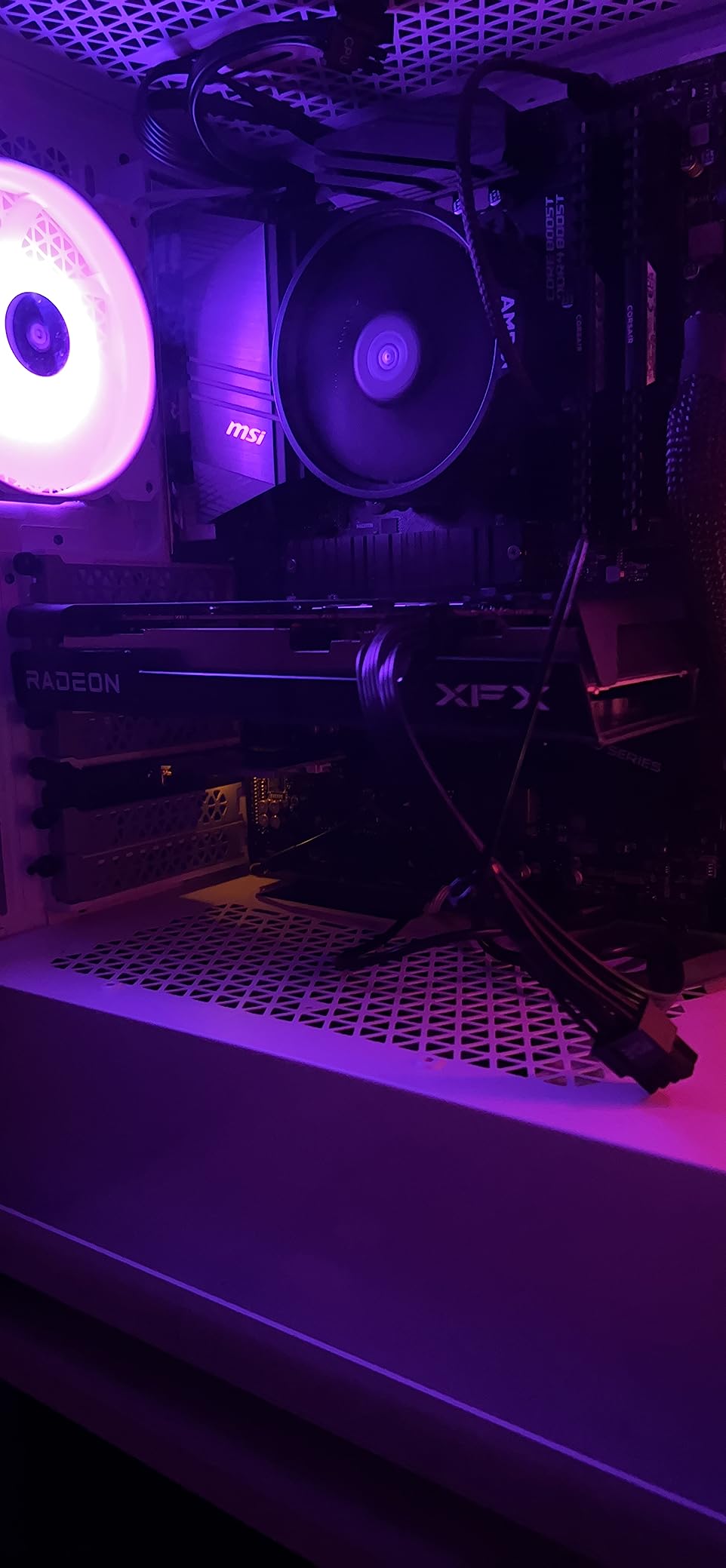
If the question is whether you need a dedicated card at all, this is the cheapest way to find out. The RX 7600 is an RDNA 3 part with 8GB of GDDR6, and it is more than enough to switch hardware acceleration on and keep a normal editing workflow responsive. Across 520 reviews it holds a 4.4-star average, and the feedback is blunt about the limits.
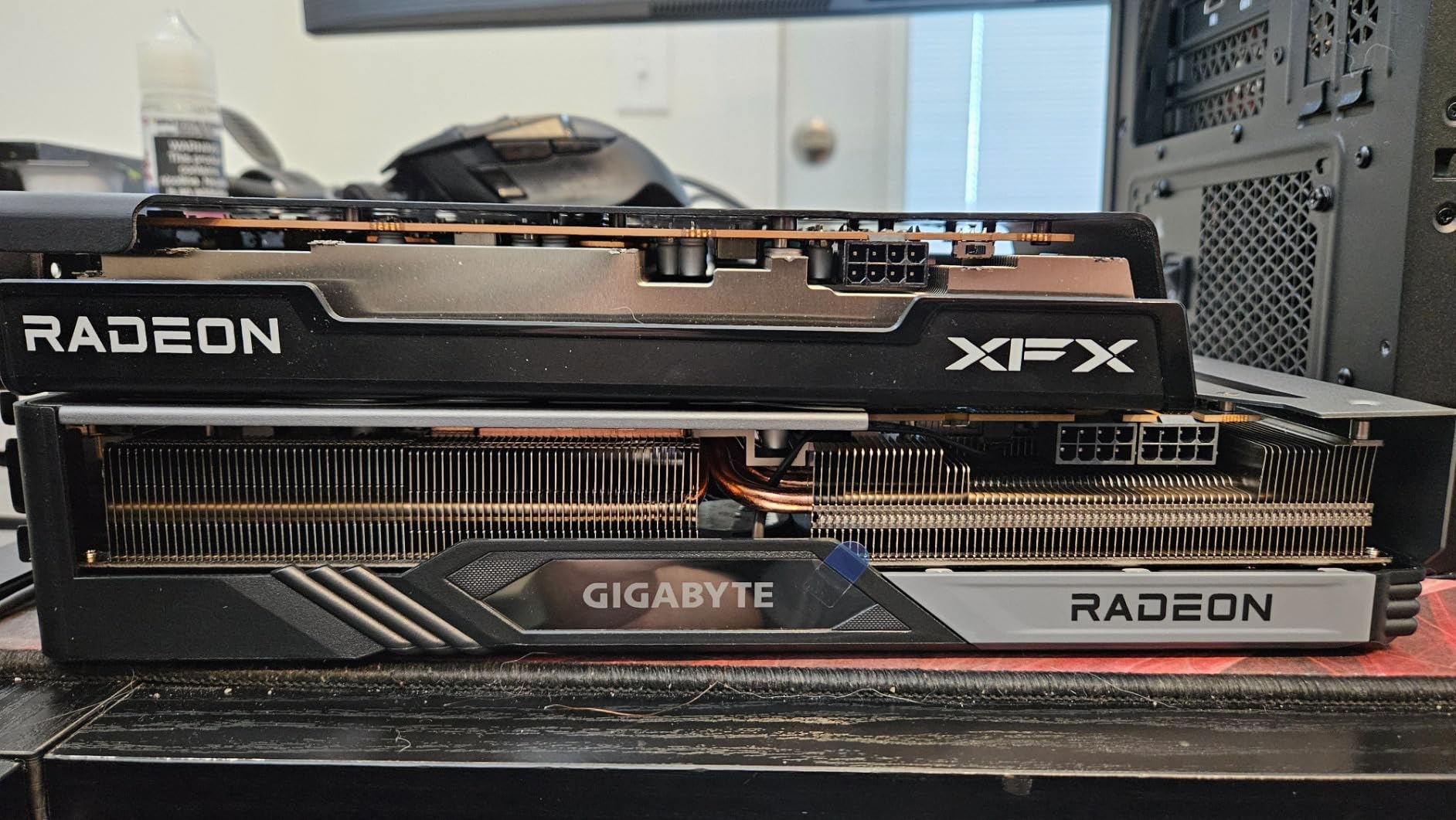
Three DisplayPort outputs is a detail that matters more for photo work than it first appears. A colour-critical setup often means a calibrated primary display plus a secondary screen for the interface, and driving three monitors from one card is easier than hunting for a second port. Maximum resolution is listed at 7680×4320, so high-resolution displays are covered.
At 900 grams and 9.49 inches long, it is a manageable card in most mid-towers, and the two-fan Speedster cooler does not demand a large case. For a first build, a compact office workstation or a machine that also does light gaming, the fit is unremarkable in the best way.
What 8GB Gets You and What It Does Not?
Eight gigabytes is enough for a working photographer editing a normal PSD with adjustments and a Neural Filter preview. It is also comfortably above the level where acceleration simply fails to engage, so you are buying real acceleration rather than a checkbox.
It becomes tight with very large RAW batches, documents with dozens of layers at high output resolution, or several AI operations running at once. When video memory runs short, applications fall back to slower paths or refuse the operation, which is why buyers moving up from an 8GB card almost always describe wanting more memory rather than more speed.
Who Should Skip This Card?
Skip it if your files are large and your sessions are long. Product photographers stitching hundreds of frames into a single document, or anyone working with large multi-frame composites, will feel the 8GB ceiling. RDNA 3 compute throughput also sits well behind the current generation, so batch AI operations take longer.
Consider a used or refurbished card with more memory instead if your budget is tight but your memory needs are not. The same money spent on a lower-tier card with more VRAM usually serves photo editing better than a faster card with less.
We earn a commission, at no additional cost to you. CERTAIN CONTENT THAT APPEARS ON THIS SITE COMES FROM AMAZON. THIS CONTENT IS PROVIDED 'AS IS' AND IS SUBJECT TO CHANGE OR REMOVAL AT ANY TIME.
4. GIGABYTE Radeon RX 9070 XT Gaming OC 16G – Best Value For Heavy Documents
GIGABYTE Radeon RX 9070 XT Gaming OC 16G Graphics Card, PCIe 5.0, 16GB GDDR6, GV-R9070XTGAMING OC-16GD Video Card
★★★★★★★★★★16GB GDDR6
3060 MHz core clock
PCIe x16
Display output
1.78 kg
- 16GB of GDDR6 gives excellent headroom for large catalogues and heavy documents
- Current RDNA 4 compute performance handles 4K-class creative workloads
- WINDFORCE cooling holds temperatures down in most builds
- Sits at the number one best-selling rank in computer graphics cards
- Three 8-pin power connectors complicate cable management
- Runs hotter than other RX 9070 XT models with a high edge-to-junction ratio
- Long and heavy at 11.34 inches and 1.78 kg
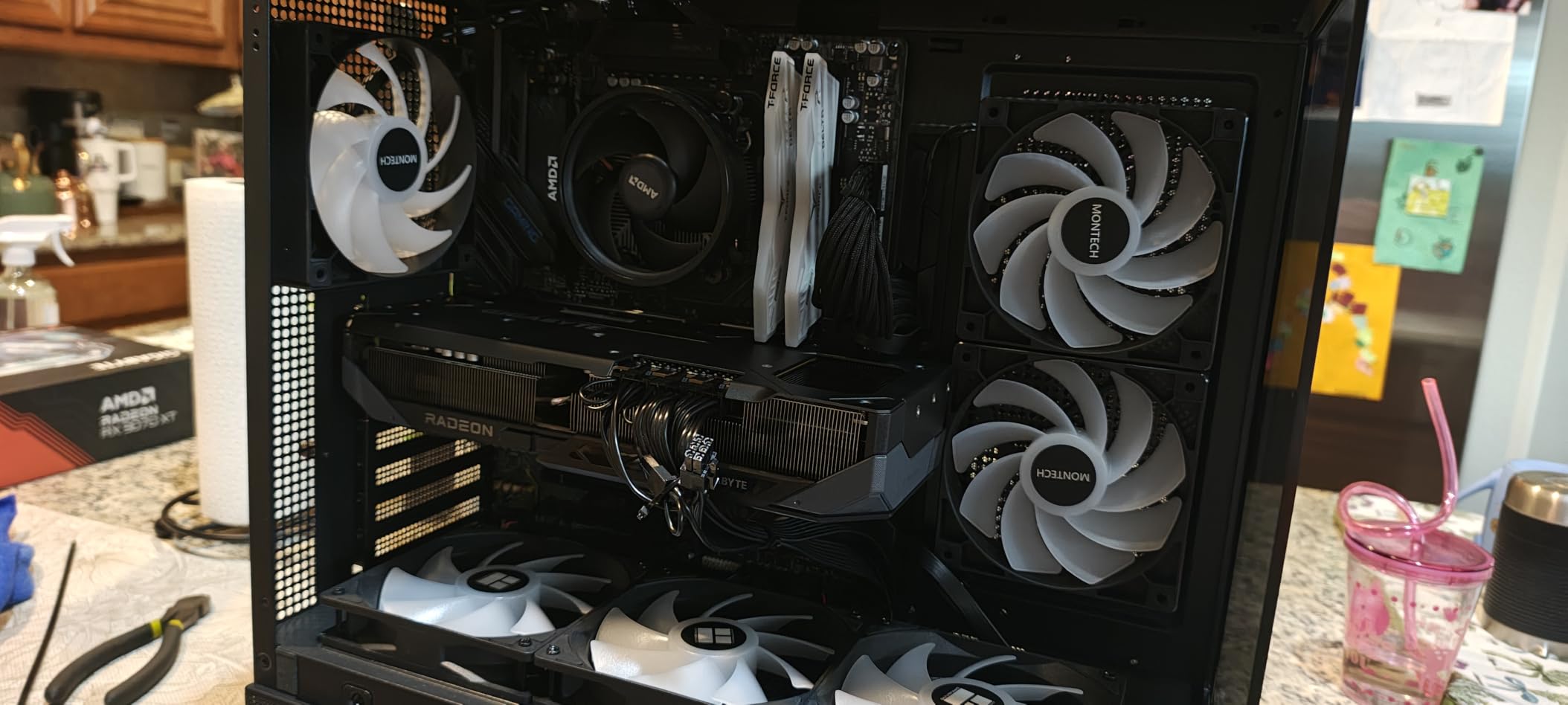
This is the card we would build around for a large catalogue workflow. Sixteen gigabytes of GDDR6 on a wide bus, current RDNA 4 silicon, and a 4.6-star average across 498 reviews. The demand signals are notable too: it currently holds the number one best-selling rank in computer graphics cards, which tells you this generation has landed well with buyers.
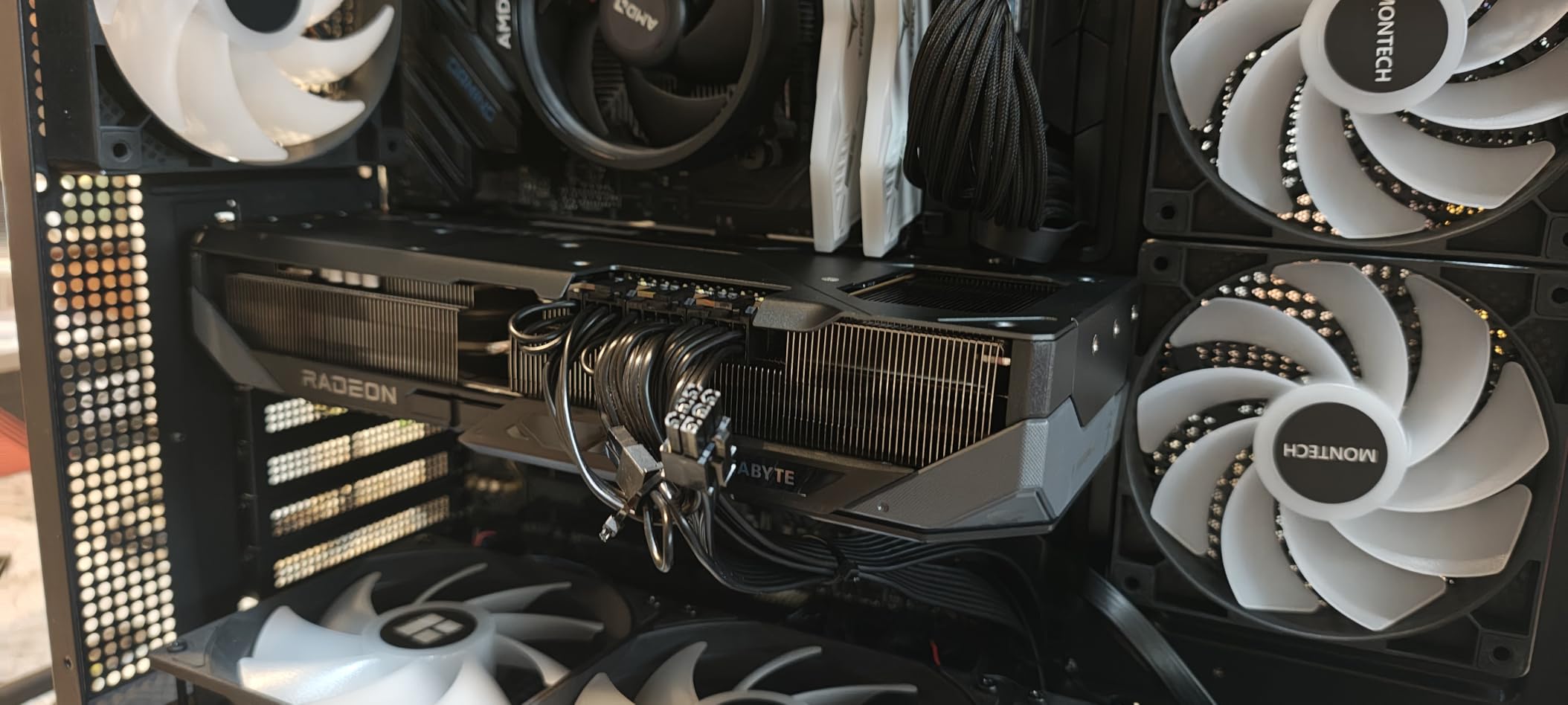
For photo editing, the appeal is straightforward. A photographer shooting high-megapixel bodies and building large composites can hold far more in video memory before anything spills to system RAM, and the wider bus moves that data faster than the narrow-bus alternatives in this roundup. The WINDFORCE cooling with Hawk fans is a proven design that holds temperatures down in most builds.
It also means this card is not a compromise if you ever want to cut video. The same 16GB pool that holds a large PSD comfortably will hold a 4K timeline with a reasonable number of effects, which is why it sits higher on this list than its pure photo position alone would suggest.
Where This Card Fits in a Photo Build?
It is the sensible middle for a working professional who is past the entry point but not chasing peak benchmark numbers. The 3060-class card covers most solo editing, and this card covers the workloads where you start seeing the difference: dense layer stacks, large canvases, batch AI and a second display running a scope or histogram view.
Server-grade thermal conductive gel between the cooler and the die is a small detail that matters for a card expected to run warm during long export sessions. It is a build you would leave switched on through a working day.
What to Watch Out For?
Three 8-pin power connectors is unusual, and cable routing in a tidy build needs planning. The card is also long at 11.34 inches and weighs 1.78 kilograms, so check that your case has clearance both for length and for the weight on the far end of the slot.
Reviewers also note it runs hotter than other RX 9070 XT models, with a high edge-to-junction ratio. In a case with restricted airflow that is worth factoring in, particularly if the machine will be in a quiet room. It is a large, capable card that asks for a large case.
We earn a commission, at no additional cost to you. CERTAIN CONTENT THAT APPEARS ON THIS SITE COMES FROM AMAZON. THIS CONTENT IS PROVIDED 'AS IS' AND IS SUBJECT TO CHANGE OR REMOVAL AT ANY TIME.
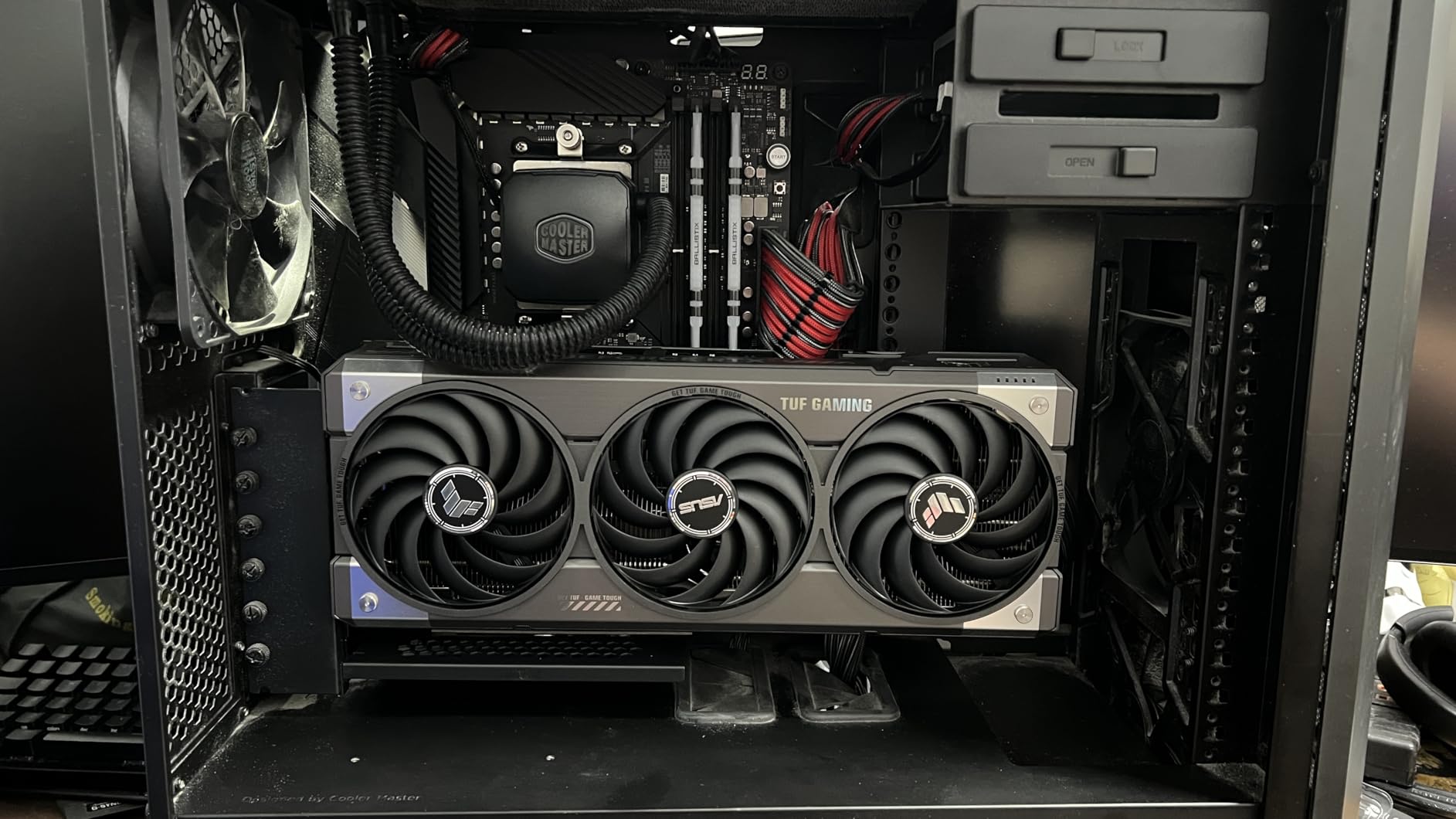
5. ASUS TUF GeForce RTX 5070 Ti 16GB – Best for AI-Heavy Workflows
ASUS TUF Gaming GeForce RTX 5070 Ti 16GB GDDR7 OC Edition Graphics Card
★★★★★★★★★★16GB GDDR7
2610 MHz OC boost
Blackwell architecture
Three Axial-tech fans
Minimum 850W PSU
- Blackwell architecture with full CUDA
- Tensor Core and RT Core support
- 16GB of fast GDDR7 across a modern memory subsystem
- Military-grade components and a phase-change thermal pad support sustained loads
- Three-fan 3.125-slot cooler keeps thermals in check
- Requires a minimum 850W PSU with a 16-pin 12V-2x6 connector
- Large and heavy 3.125-slot design at 13 inches needs a spacious case
- Premium pricing for a 16GB card against comparable RDNA 4 options
This is the card to buy when your photo work has grown an AI dimension. Generative Fill, Neural Filters and heavy AI Denoise batches lean on Tensor Cores, and Blackwell provides the newest implementations of those alongside full CUDA support, which is the deepest software ecosystem for compute-accelerated tools.
The 4.7-star average from 529 reviews comes with a consistent theme: build quality, cooling and stable performance, tempered by size and power. The TUF line uses military-grade components, a protective PCB coating and a phase-change GPU thermal pad, all of which are aimed at cards that run hard for long periods.
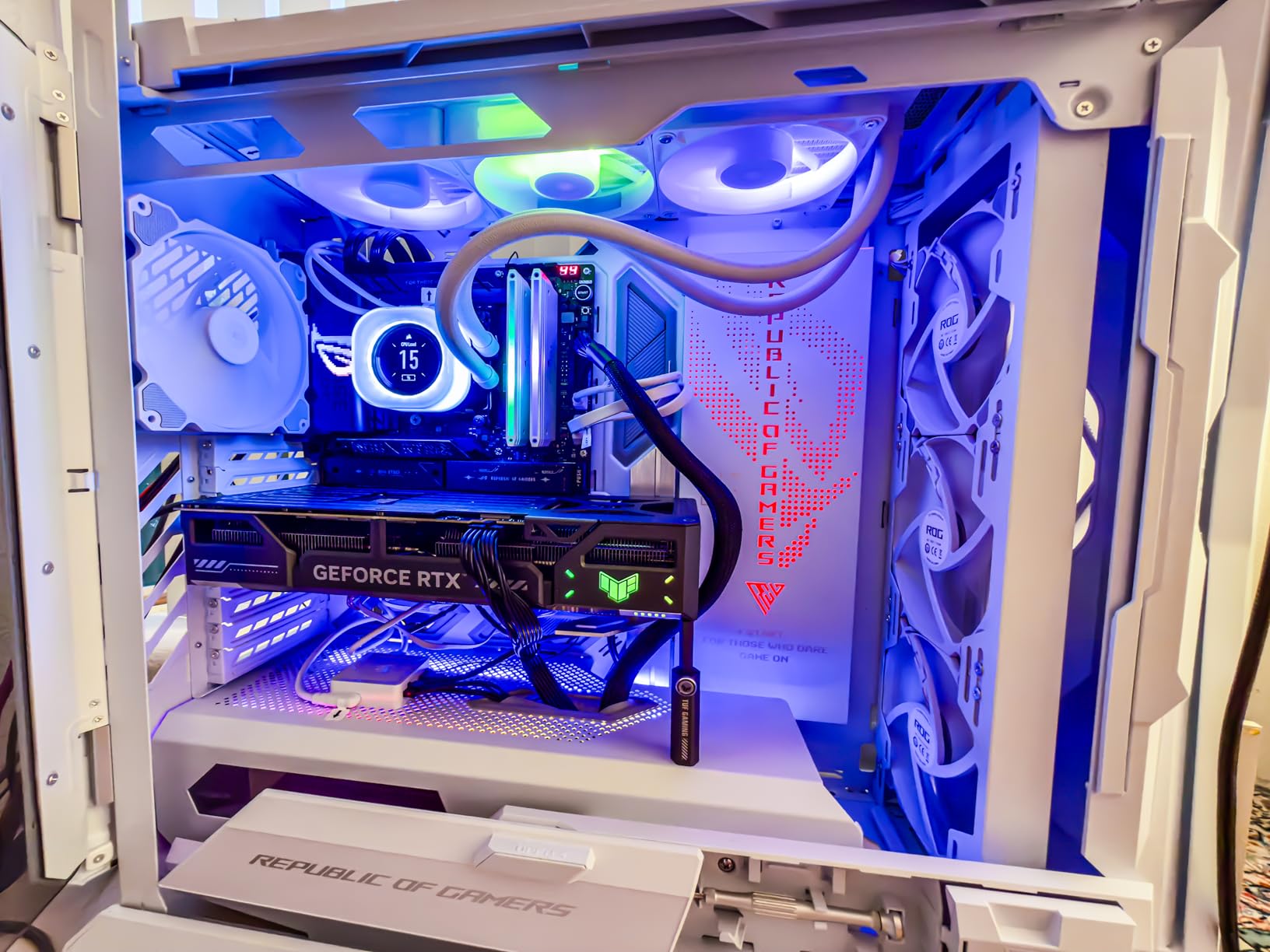
Sixteen gigabytes of GDDR7 is the memory configuration that suits both halves of the workload. Large PSDs get the capacity they need, and the faster memory generation keeps interactive filter work responsive. The three Axial-tech fans and 3.125-slot cooler are sized for sustained load rather than short bursts.
Output is generous too, with three DisplayPort 2.1a and two HDMI 2.1b connections, so a multi-monitor colour-critical setup is straightforward. If you also work in video, the media engine handles encoding alongside the photo pipeline.
Why NVIDIA Matters More Than Raw Photo Specs Suggest?
Adobe’s acceleration is built on OpenCL and OpenGL, which both vendors support. The difference shows up in third-party tooling. CUDA remains the most widely used compute platform for plugins, upscalers, denoising tools and local AI models, and a card with full CUDA and Tensor Core support simply has more software that runs on it.
If you stay inside Adobe’s own features, the gap narrows considerably and an RDNA 4 card with equal memory becomes hard to distinguish. If you add outside tools, NVIDIA stays the safer foundation.
What the Premium Buys and What It Costs?
The jump from a 16GB RDNA 4 card to this one is not a jump in VRAM. Both hold 16GB. What you are buying is faster memory, newer tensor hardware and CUDA depth, which matters for AI-heavy days and barely at all for a day spent in the Develop module.
The costs are physical and electrical. A minimum 850W power supply with a 16-pin 12V-2×6 connector is required, the card is 13 inches long, and the three-slot-plus cooler needs clearance. Check your case and your power supply before anything else. If the budget is already committed elsewhere, a 16GB RDNA 4 card delivers nearly all of the photo-editing benefit for less.
We earn a commission, at no additional cost to you. CERTAIN CONTENT THAT APPEARS ON THIS SITE COMES FROM AMAZON. THIS CONTENT IS PROVIDED 'AS IS' AND IS SUBJECT TO CHANGE OR REMOVAL AT ANY TIME.
6. ASRock Radeon AI PRO R9700 Creator 32GB – For Workstation Memory Demands
ASRock Radeon AI PRO R9700 Creator 32GB Professional Graphics Card, 2920 MHz Boost Clock, GDDR6, AMD RDNA 4, AI-Accelerators, DisplayPort 2.1a, PCIe 5.0, Blower Cooler
★★★★★★★★★★32GB GDDR6 on 256-bit
2920 MHz boost
64 Compute Units
Professional blower cooler
Four DisplayPort 2.1a
- 32GB of GDDR6 on a 256-bit bus is the largest video memory pool in this roundup
- Blower cooler suits multi-GPU workstation and server chassis
- Four DisplayPort 2.1a outputs support multiple high-resolution professional displays
- Two-slot form factor maximises density in rack and workstation builds
- Metal shroud and backplate built for sustained professional loads
- Blower fans are noticeably louder than fan-cooled cards under sustained load
- ROCm-based software needs more setup than CUDA for compute workflows
- Smallest review base in the group at 53 reviews and a 4.5-star average
- Card is long and needs careful cable routing
This is the memory answer. Thirty-two gigabytes of GDDR6 on a 256-bit bus is the largest working set available in this roundup, and for a studio running very large photo documents, high-resolution compositing or 8K video timelines, capacity is the constraint you cannot engineer around.
It is a professional card rather than a gaming one, and the design shows it. The blower cooler exhausts heat directly out of the chassis, which is the right choice in a multi-GPU workstation or rack where a conventional cooler would cook its neighbours. The vapour chamber heatsink with Honeywell PTM7950 thermal interface material, plus a die-cast metal shroud and backplate, are built for 24/7 operation.
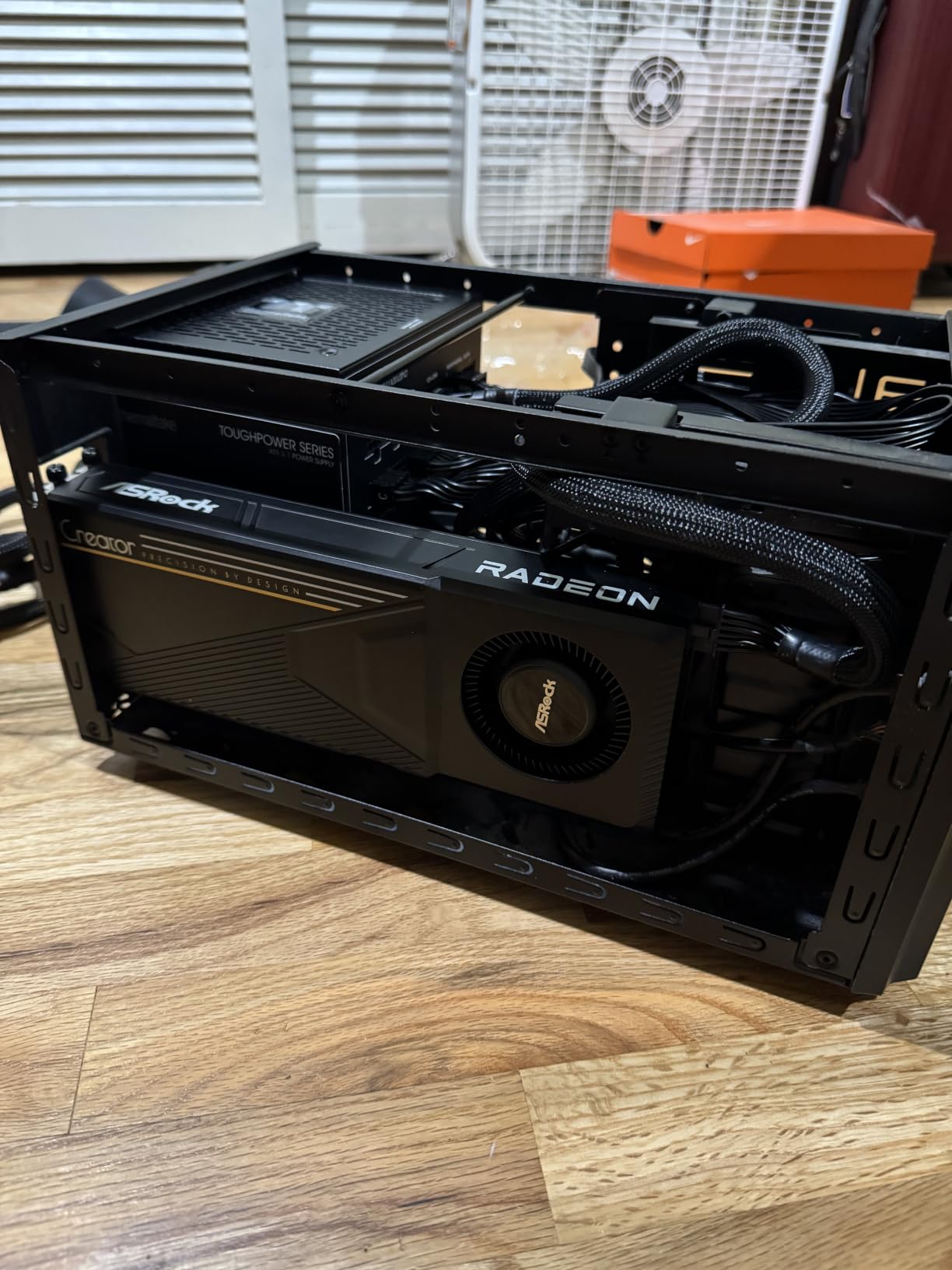
RDNA 4 with 64 Compute Units and dedicated 2nd Gen AI Accelerators at a 2920 MHz boost clock gives it the compute to use that memory rather than merely hold it. Four DisplayPort 2.1a outputs make a multi-display reference setup straightforward, and the standard two-slot form factor maximises density.
One practical note: a 12V-2×6 to 3x 8-pin power cable is included, which helps if your supply does not have the newer connector natively.
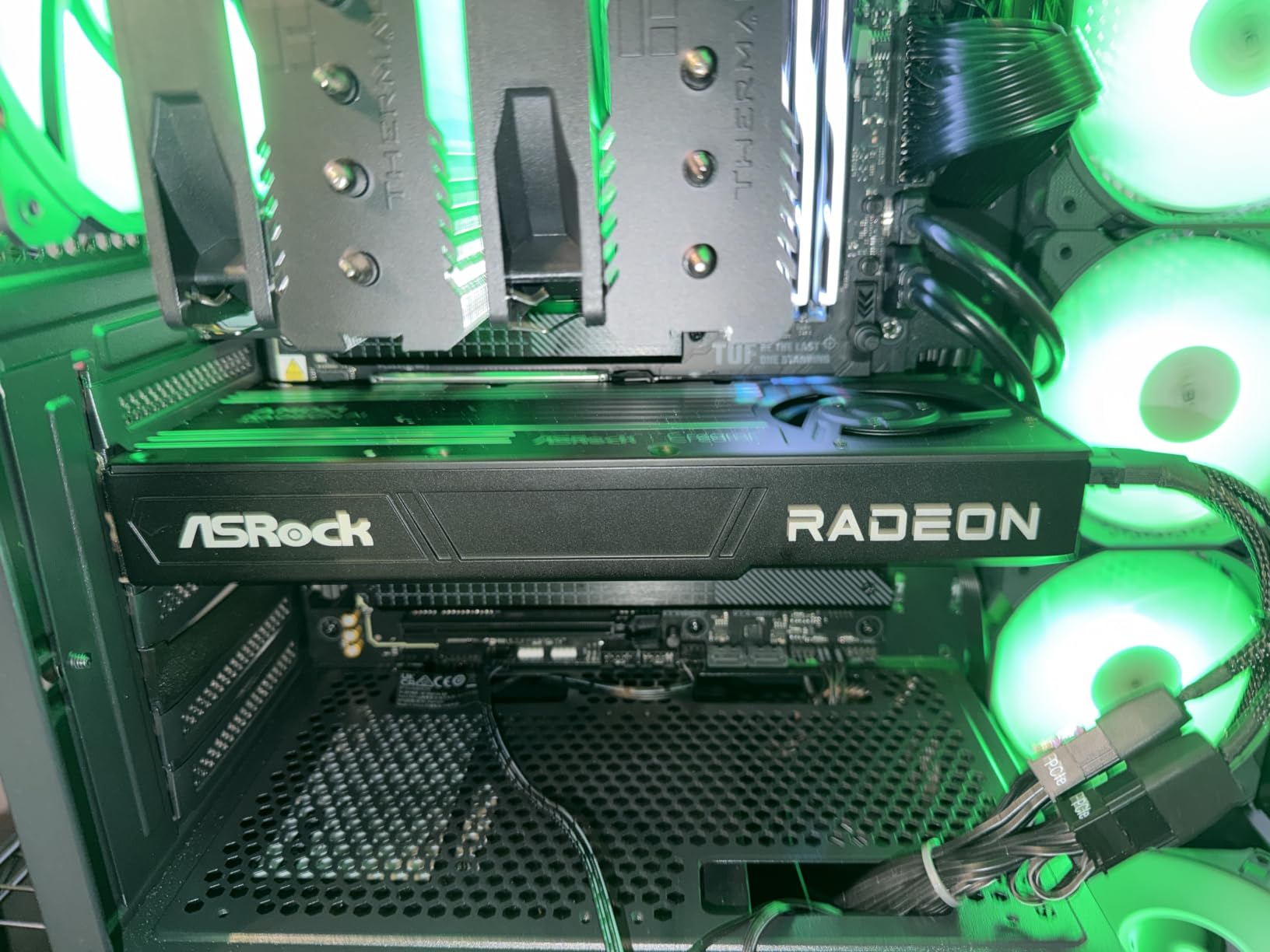
When 32GB Is the Right Answer?
Buy for memory, not for speed. Very large stitched panoramas, projection and interior visualisations, 8K video grading and machine-learning workflows on the desktop are the cases where 32GB removes a limit entirely. A 16GB card will run those workloads, but it will trade memory for system RAM over PCIe, and that trade is where the slowdown lives.
For ordinary photo editing this is far more than you need. Nobody is going to feel the difference between 16GB and 32GB while developing a normal RAW file.
What Gives You Pause Before Buying?
The blower cooler trades silence for thermals. Under sustained load it is noticeably louder than the conventional fan-cooled cards in this list, which matters in a small editing room. It is designed to be heard, because it is designed to be next to other hot hardware.
For compute and AI work, the ROCm-based software path takes more setup than CUDA, and some third-party tools are still NVIDIA-only. The review base is also the thinnest here at 53 reviews with a 4.5-star average, so you are buying on specification and design intent more than on a long history of owner reports. The card is long, so measure before you commit.
We earn a commission, at no additional cost to you. CERTAIN CONTENT THAT APPEARS ON THIS SITE COMES FROM AMAZON. THIS CONTENT IS PROVIDED 'AS IS' AND IS SUBJECT TO CHANGE OR REMOVAL AT ANY TIME.
7. GIGABYTE GeForce RTX 5080 Gaming OC 16G – Fastest Accelerator in This Group
GIGABYTE GeForce RTX 5080 Gaming OC 16G Graphics Card, WINDFORCE Cooling System, 16GB 256-bit GDDR7, GV-N5080GAMING OC-16GD Video Card
★★★★★★★★★★16GB GDDR7 on 256-bit
2.73 GHz core clock
30 GHz memory
Blackwell architecture
PCIe 5.0
- Blackwell CUDA and Tensor cores deliver the fastest GPU-accelerated editing here
- 16GB of GDDR7 on a 256-bit bus gives very high memory bandwidth
- WINDFORCE cooling holds roughly 60-65 C under sustained full load
- Quiet at stock fan curve with easy overclocking headroom
- Enormous at 13.46 inches
- many cases need fan or radiator relocation
- RGB lighting is modest for a card at this level
- Can develop fan resonance between 1450-1600 RPM without tuning
- Draws substantially more power and needs extra supply headroom
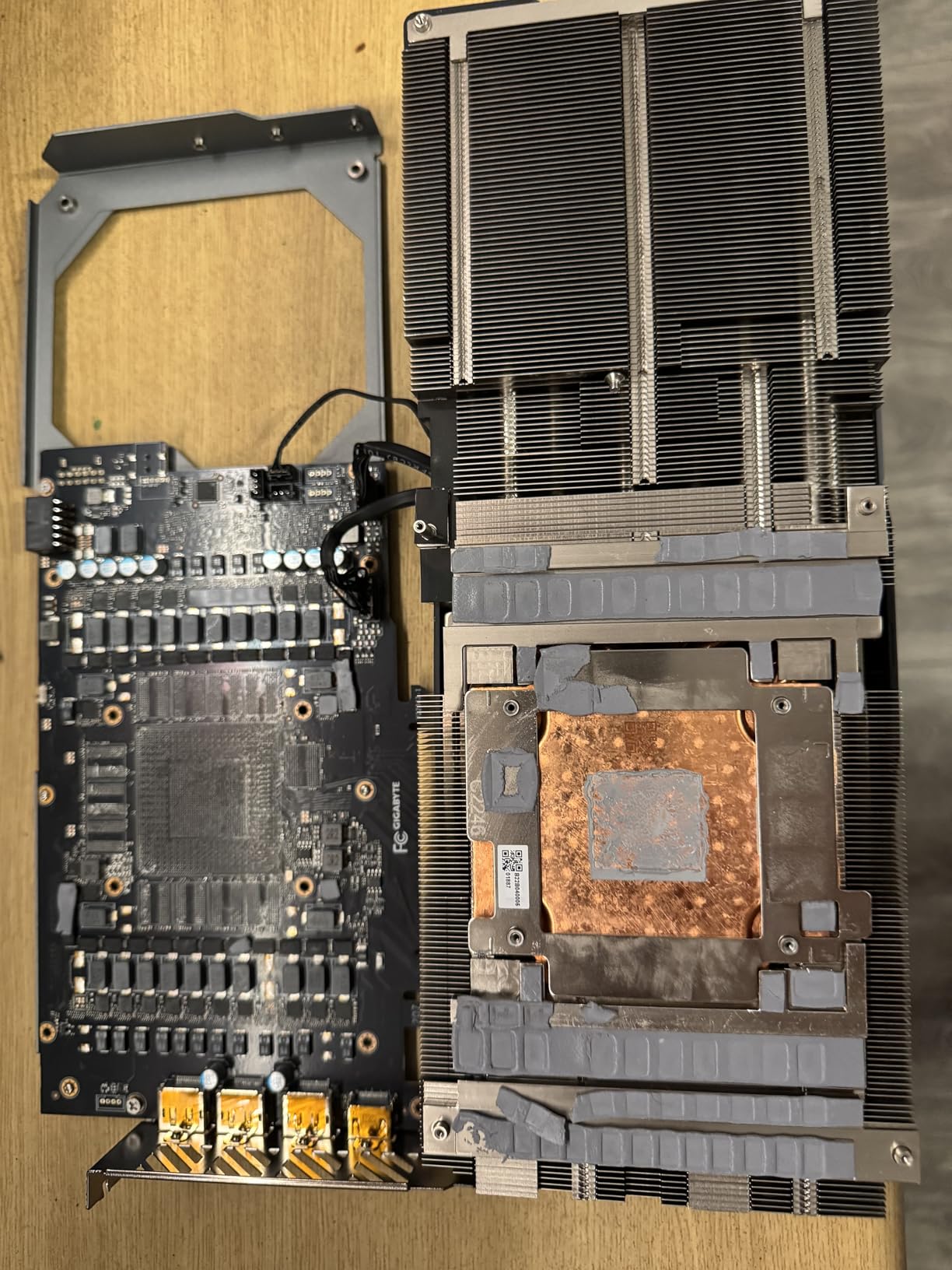
If you want the fastest GPU-accelerated editing performance available in this roundup, this is it. Blackwell CUDA and Tensor cores with 16GB of GDDR7 on a 256-bit bus give it the highest memory bandwidth of the NVIDIA cards here, and reviewers report large gains over the previous generation of RTX hardware.
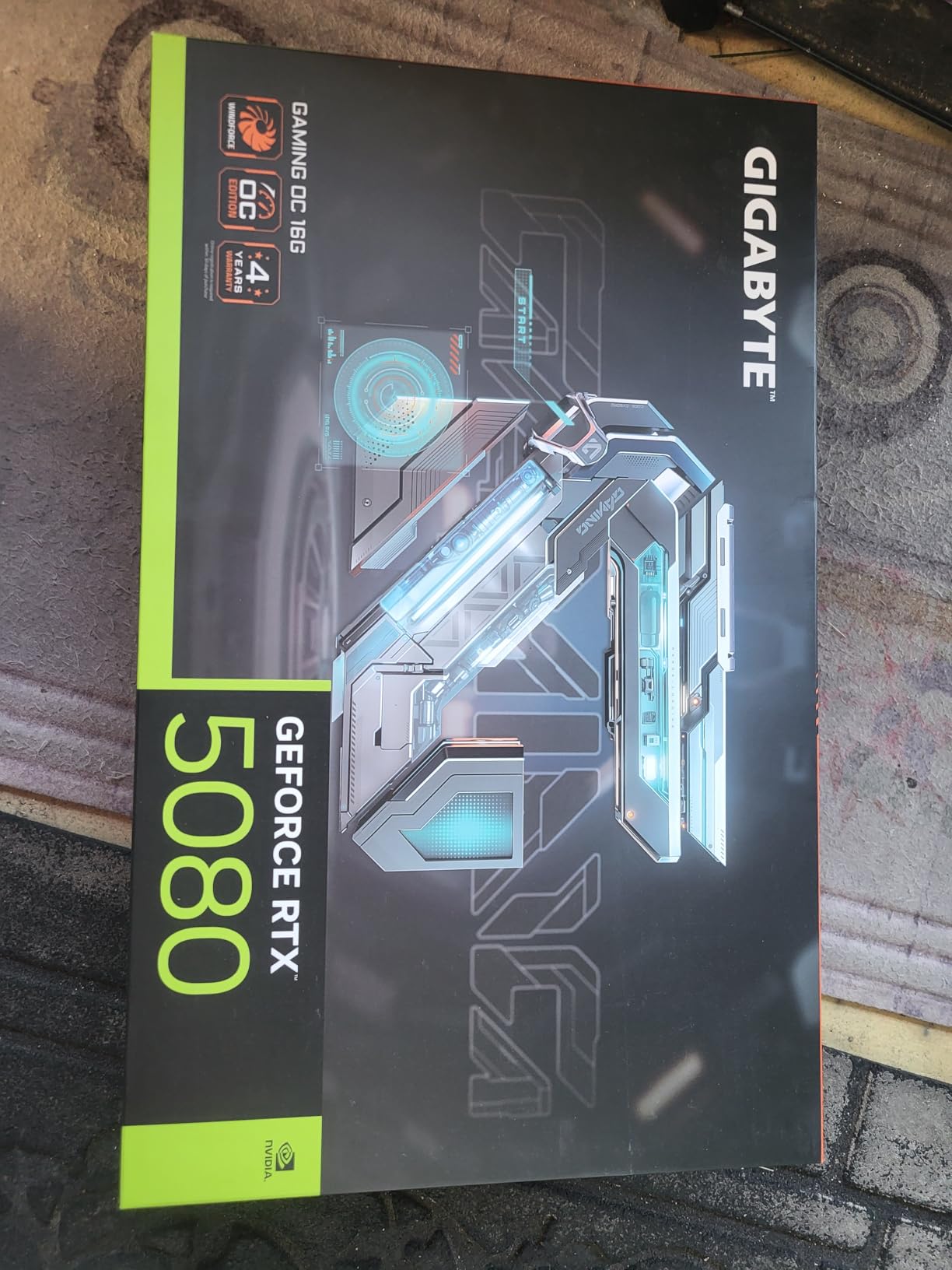
Thermally it is well behaved. Owners cite WINDFORCE cooling holding roughly 60-65 degrees Celsius under sustained full load, and a quiet stock fan curve with headroom for tuning. A 12V-2×6 to 3x PCIe 8-pin adapter and a VGA holder are included, which helps with fitment in cases that lack the native connector.
For photo work, be honest about what the extra speed buys. Filter chains, large canvas operations and AI preprocessing all respond, but the difference between this and a well-chosen 16GB card is seconds, not a changed workflow. Where it transforms the experience is video: this is a card built for editing timelines as much as stills.
When the Extra Speed Is Worth It?
It is worth it when you are a hybrid editor moving between stills and 4K or 8K video, when you run generative workflows that keep the GPU saturated, or when you are simply building a machine intended to last a working lifetime without another upgrade. The bandwidth keeps large working sets moving rather than stalling on memory latency.
It is not worth it for pure photo work on standard-resolution images. That is the uncomfortable truth buyers on the forums keep arriving at, and it is why so many photographers who moved up to flagship cards report little change in their daily rhythm.
The Practical Catch
At 13.46 inches long and four pounds, this card does not fit a compact case without moving fans or a front radiator. It also draws substantially more power, which means real headroom in your supply. The included adapter helps, but a card that size in a mid-tower can dominate airflow.
Owners also report possible fan resonance between roughly 1450 and 1600 RPM if the fan curve is left at default, which is straightforward to fix with a tuning pass. Between the size, the power and the modest RGB for a card at this level, this is a purchase driven by performance and case fit, not aesthetics.
We earn a commission, at no additional cost to you. CERTAIN CONTENT THAT APPEARS ON THIS SITE COMES FROM AMAZON. THIS CONTENT IS PROVIDED 'AS IS' AND IS SUBJECT TO CHANGE OR REMOVAL AT ANY TIME.
8. ASRock Intel Arc B570 10GB – Quiet, Low-Power and Surprisingly Roomy
ASRock Intel Arc B570 Challenger 10GB OC GDDR6 Graphics Card, 2600 MHz GPU, 19 Gbps Memory, Dual Fan, Metal Backplate, HDMI 2.1a, DisplayPort 2.1, 0dB Cooling
★★★★★★★★★★10GB GDDR6 on 160-bit
2600 MHz GPU clock
19 Gbps memory
Dual fan with 0dB stop
Single 8-pin
- 10GB on a 160-bit bus delivers about 380 GB/s of bandwidth
- Dual media engines handle AV1 and HEVC for accelerated video export
- 0dB silent dual-fan cooler stops at idle and stays quiet under load
- Single 8-pin connector keeps power draw and thermals modest
- Metal backplate adds rigidity and prevents GPU sag
- Some applications need ReBAR and Resizable BAR enabled in BIOS
- Performance is uneven at high resolutions
- Intel software and driver ecosystem is less mature than the CUDA stack
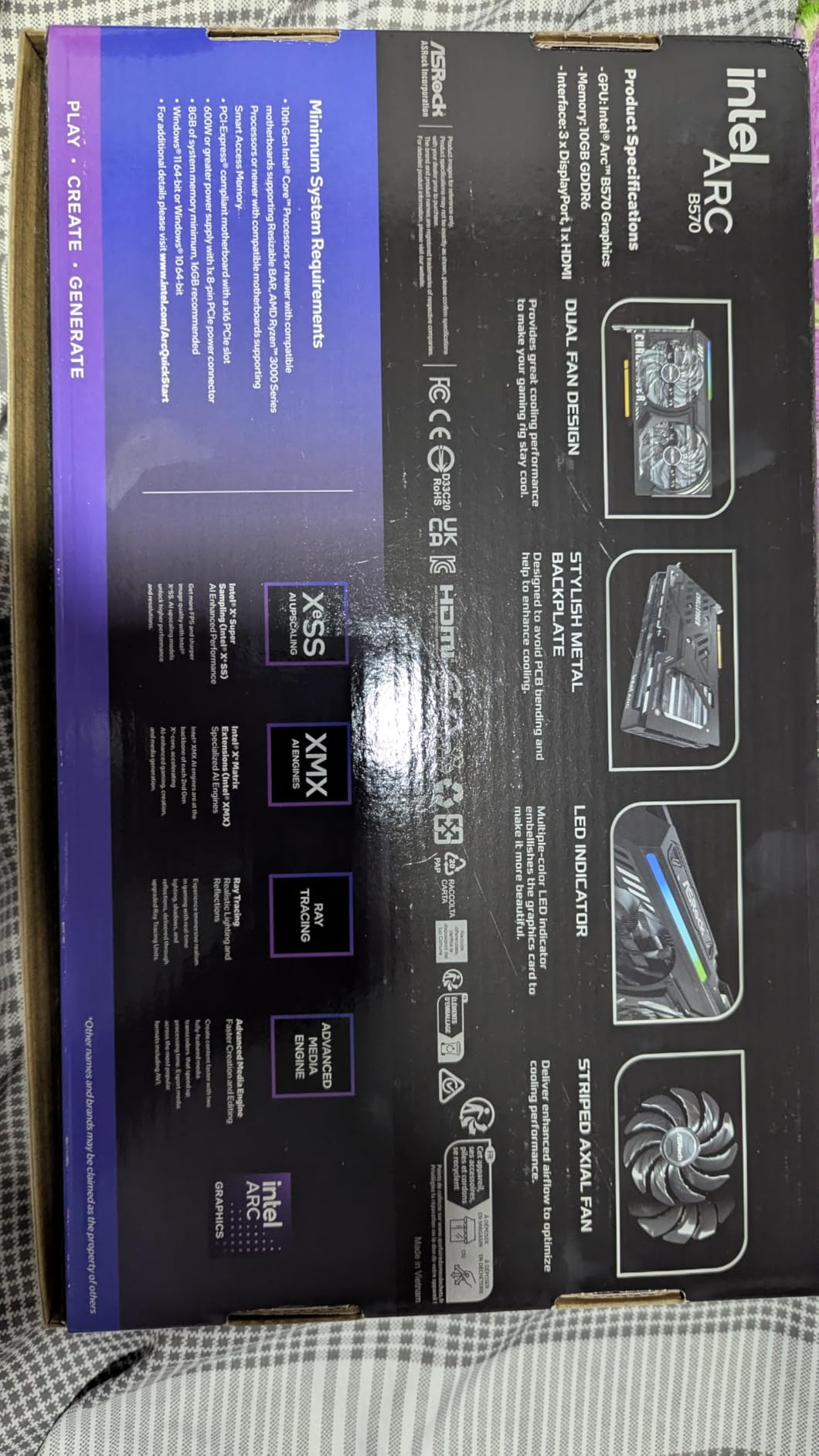
Intel’s Arc B570 is the outsider in this roundup, and the spec sheet is more interesting than the brand badge suggests. Ten gigabytes of GDDR6 on a 160-bit bus delivers roughly 380 GB/s of bandwidth, which is more than several cards people buy for twice as much, and it runs on a single 8-pin connector at 0.99 kilograms.
The 4.7-star average from 110 reviews reflects a card owners like for the memory capacity, the quiet cooling and the media engine. The Xe2-HPG architecture includes Xe Matrix Extensions for AI acceleration, and the AV1 encode and decode capability makes accelerated video export a genuine strength rather than a checkbox.
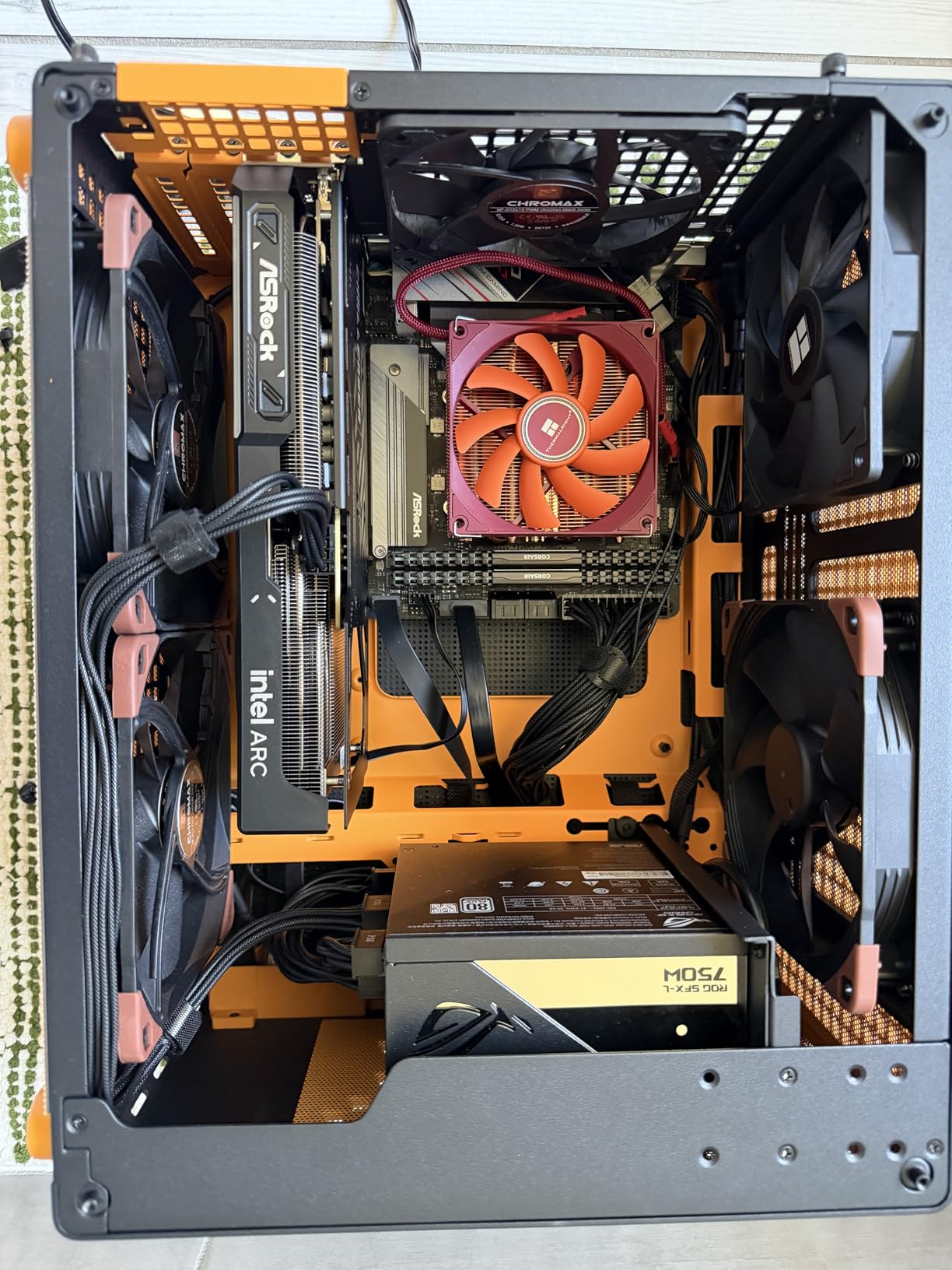
Output is three DisplayPort 2.1 and one HDMI 2.1a, with a maximum listed resolution of 7680×4320. The metal backplate prevents GPU sag, which is a sensible inclusion on a card of this length. A dual-fan cooler with a 0dB stop means it is completely silent until it has work to do, which suits a machine that sits on a desk all day.
Note the interface: this is a PCIe x8 card. In a modern desktop with a x16 slot that is not a limitation, but it is worth knowing if you are planning an unusual motherboard layout.
Where Arc Fits in a Photo Build?
Ten gigabytes sits in an interesting position, above the 8GB picks and below the 16GB cards, and it comes with more bandwidth than its price tier would suggest. For a photographer who wants acceleration, a quiet machine and modest power draw, it covers a lot of ground without asking for a case upgrade.
The AV1 media engine is the quiet bonus. If you export video alongside stills, hardware encode and decode removes a slow step from the pipeline that many cheaper cards handle in software.
What to Set Up First?
Enable Resizable BAR in the BIOS before you install. Some applications need it, and a small number of owners report driver-level issues that trace back to it not being on. It takes a minute and removes a common class of confusion.
Second, set expectations on drivers. Intel’s software ecosystem is younger and less mature than the CUDA stack, so expect occasional release-day issues that would not appear on an NVIDIA or AMD card. The 0dB cooling and modest power draw are genuine advantages; the software maturity question is the one to weigh against your tolerance for troubleshooting.
We earn a commission, at no additional cost to you. CERTAIN CONTENT THAT APPEARS ON THIS SITE COMES FROM AMAZON. THIS CONTENT IS PROVIDED 'AS IS' AND IS SUBJECT TO CHANGE OR REMOVAL AT ANY TIME.
How Much VRAM Do You Actually Need?
Eight gigabytes is the practical sweet spot for most photo editors, and the reason is that VRAM capacity is what determines whether your working set stays on the card. Adobe’s own guidance sets 4GB as the floor for GPU acceleration in Photoshop, but a floor is not a target. Here is the ladder, tied to the workload each tier actually serves.
Tier 1 – 2GB. Enough to switch acceleration on and nothing more. Users on hardware forums report that any discrete GPU can cover this, which is true and also the entire extent of the claim. A card with 2GB is a starting point for testing, not a build.
Tier 2 – 4GB. Adobe’s stated minimum for GPU acceleration. It removes the switch to CPU for most standard workflows and is adequate for culling, develop work and moderate compositing. It is tight for anything involving AI features, which typically want 4GB before they will run and more once running.
Tier 3 – 8GB. The practical sweet spot. This is where large catalogues, multi-monitor setups and 45MP RAW files all coexist comfortably, and it is the tier most working photographers should target. Reviews of this roundup consistently show owners who never approach the limit.
Tier 4 – 16GB and above. Where large multilayer documents, heavy Neural Filter work, Generative Fill and 4K or 8K video timelines stop being constrained. This is a headroom purchase, not a speed purchase, and you should be able to name the workload that needs it.
Two sizing mistakes are worth calling out because they recur constantly. The first is confusing video memory with system RAM. They are separate pools, and a machine with 64GB of system RAM does not compensate for a card with 4GB on the card. The second is buying capacity you will never fill: moving from 16GB to 32GB on a pure stills workflow buys nothing you will notice.
Where system RAM matters is everywhere else. Lightroom catalogues, RAW decoding buffers and Photoshop history all draw on it, and plenty of editors run happily on a modest amount. If your machine is short on system memory or running on a slow drive, fix that first and buy a card second.
Where the Speedup Comes From and Where It Stops?
The GPU accelerates a specific and identifiable list of operations, and understanding the list is what stops you overpaying. RAW decode and preview generation, canvas zoom and pan, layer blending, filter rendering, smart object resampling, large document scrolling and export all benefit. Things that do not move to the GPU include most of the Develop module’s slider math, file management, catalogue indexing and printing.
This is why photographers with identical cards report wildly different experiences. If your bottleneck is catalogue indexing or a slow drive, no graphics card will touch it. If your bottleneck is a 400-megapixel document refusing to scroll, the card is exactly the fix.
The returns also flatten sooner than shopping pages suggest. A long-running observation in the TechPowerUp forum thread on Photoshop rigs put it plainly: Photoshop showed very little gain above a 1070 or 1660Ti-class card, which is a mid-range part by any measure. That is the sweet spot thesis in one sentence, and it has aged well as newer generations arrived. The mid-range tier still does the work.
What changes the calculus is AI. Neural Filters, Generative Fill and local models shift the workload from modest filter maths to sustained parallel compute, and that is where faster tensor hardware and more memory start to matter. Below that threshold, buying more card buys less speed.
So the honest ranking of what actually improves a photo editing machine goes like this: system memory and storage first, then a card with enough VRAM to hold your working set, then faster GPU silicon only if your workload is compute-bound. Most buyers get this order wrong, and the forum consensus on VRAM being the real buying driver rather than speed is difficult to argue with.
How to Confirm GPU Acceleration Is Actually On?
Photoshop can silently fall back to the CPU, which is the most common cause of “I bought a graphics card and nothing changed”. Checking takes under a minute in both applications.
In Photoshop: open Edit, then Preferences, then Performance. The Graphics section at the top shows the detected card and, next to it, whether GPU acceleration is enabled. If it reads off, the card is not being used. Below it, the Memory section shows how much of your system RAM Photoshop is using, and the scratch disk settings show where temporary data is going when RAM runs short.
In Lightroom Classic: the equivalent lives under the Develop module. If you export a small JPEG and compare the export speed with GPU acceleration switched off in Lightroom’s preferences, the difference in a large batch is obvious. Lightroom also benefits most visibly in the Develop module with a high-resolution display, where GPU-accelerated preview rendering is the difference between a smooth slider and a stutter.
If acceleration will not engage, work through these in order. Update the graphics driver first, using the Studio Driver on NVIDIA for photo work rather than the Game Ready release. Confirm the card is seated and detected in your operating system. Raise video memory if an application reports that it cannot allocate enough, and close other applications that may be holding a large share of the card.
On NVIDIA specifically, the Studio Driver is built and tested for creative applications and is the correct default for a machine that spends its day in Adobe software. It receives scheduled releases on a predictable cadence rather than the rapid-fire schedule of the gaming driver.
Nvidia vs AMD for Photo Editing Workloads
For stills inside Adobe’s own applications, the difference is smaller than the gaming charts suggest. Both vendors support the OpenCL and OpenGL paths that Photoshop and Lightroom use, and with equal video memory the interactive experience is difficult to separate.
NVIDIA pulls ahead in three places. The first is software depth: CUDA remains the most widely supported compute platform for third-party plugins, upscalers, local AI models and denoising tools. The second is media engine support, which matters for hybrid editors. The third is driver maturity and the availability of a Studio Driver built specifically for creative workloads.
AMD pulls ahead on value for pure photo work. The RX 9060 XT gives you 16GB of VRAM, a current RDNA 4 architecture with 2nd Gen AI Accelerators, a compact two-slot cooler and a single power connector, in a card that is physically easier to build with. The RX 9070 XT 16G extends the same idea with more compute and a wider bus.
Intel sits in a third position, and an interesting one. The Arc B570 pairs 10GB with more memory bandwidth than its tier suggests and adds AV1 encode and decode, while asking the least of your power supply. The trade is software maturity, so it suits a builder who is comfortable with BIOS settings and driver behaviour.
For a workstation that also games, the same answer applies. Pick the card that does the work you need and accept a modest compromise in the other direction, rather than buying for the hobby and hoping the day job follows.
What Else to Check Before You Buy?
Power supply and connectors. The two largest cards here demand a minimum 850W supply with a 16-pin 12V-2×6 connector. Smaller cards in this roundup run on a single 8-pin. Check the connector type before the card, not after.
Physical clearance. Card length in this roundup runs from a compact 249 millimetres to 13.46 inches, and the heaviest sits at four pounds. Measure from the rear slot bracket to the front drive cage, and check that the case has room for the cooler thickness too. Three-slot-and-over designs block neighbouring expansion slots.
Display outputs. If you are building a colour-critical desk, the monitor matters more than the card. Our guide to the best monitors for photo editing covers wide-gamut panels and the calibration side that the card cannot solve.
10-bit and wide-gamut workflows. For high-bit-depth output and professional colour management, a workstation-class card from the Quadro or Radeon Pro lines carries driver certification for professional displays. A GeForce or Radeon card will drive the monitor, but without the same certified support. This is a genuine reason to move up a tier, and it is the one case where a more expensive card is justified by the display rather than the editing speed.
Driver choice. Use the Studio Driver on NVIDIA for photo work. The Game Ready Driver is optimised for new game releases and gives you the least stable foundation for a machine that runs Adobe software all day.
Hybrid gaming builds. If the same machine games, a card in the 16GB middle of this roundup handles both without compromise. The budget picks will feel the strain on newer titles, and the workstation cards are built for stability rather than frame rates.
Laptop versus desktop. Laptop graphics chips share system memory rather than carrying their own pool, and thermal limits cap sustained performance. Editing on a laptop is fine, but the advice in this guide assumes a desktop with a card you can choose.
Apple Silicon. If your editing happens on a Mac with an M-series chip, the integrated GPU already accelerates these operations and none of these cards is relevant to your machine.
For a wider look at the current generation outside this workload, our graphics card ranking covers the full field. If you are still choosing a pointing device rather than a card, the graphics tablet roundup is the other half of a photo setup.
Frequently Asked Questions
Do I need a dedicated graphics card for photo editing?
Only if your workload is heavy. A dedicated card earns its place when you edit high-megapixel RAW files, work with large multilayer PSD documents, use AI Denoise or Generative Fill regularly, grade in 10-bit wide-gamut, or cut video alongside stills. If you mainly cull and develop standard-resolution images, more system RAM and a fast SSD will improve your experience far more.
How much VRAM does Photoshop need?
Adobe’s stated floor for GPU acceleration is 4GB, but that is a minimum rather than a target. 2GB is enough to switch acceleration on, 4GB covers standard workflows, 8GB is the practical sweet spot for a working photographer, and 16GB or more is where large documents and AI features stop being constrained.
Is 8GB VRAM enough for Lightroom Classic?
For most photographers, yes. Eight gigabytes comfortably handles a large catalogue, 45MP RAW files, multi-monitor workspaces and moderate compositing. You will approach the limit with very large RAW batches, documents with dozens of layers at print resolution, or several AI operations running at once.
What graphics card is recommended for Lightroom?
Any modern discrete card with 8GB of VRAM is a sound choice, and the brands matter less than the memory. Choose a card that fits your case and power supply, supports OpenCL or OpenGL, and is quiet enough for the room you work in. Above 16GB, the returns flatten quickly for stills work.
Is Photoshop CPU or GPU heavy?
Photoshop is mostly CPU-bound for the Develop-style maths, file handling and history operations. The GPU handles RAW decode, canvas zoom and pan, layer blending, filter rendering, large document scrolling and export. A slow CPU or a full scratch disk will hold you back more than a slow card.
How do I confirm GPU acceleration is enabled in Photoshop?
Open Edit, then Preferences, then Performance. The Graphics section shows the detected card and whether GPU acceleration is on. If it reads off, the card is not being used, and you should update the graphics driver, check the card is detected by the operating system, and try the NVIDIA Studio Driver if you are on a GeForce card.
Final Verdict
For most people reading this, the best graphics card for hardware accelerated photo editing in 2026 is a card with 8GB to 16GB of VRAM that fits the case and the power supply you already have. Start there. The MSI GeForce RTX 3060 12GB is our pick because 12GB covers almost every workflow and it has the deepest owner history in the group at 4.7 stars across 5188 reviews.
If you want more memory and less noise, the ASRock Radeon RX 9060 XT 16GB gives you 16GB in a compact two-slot design that runs silently. If your documents are heavy and your budget allows, the GIGABYTE Radeon RX 9070 XT Gaming OC 16G is the strongest all-round value. Move above 16GB only when you can name the workload that needs it, whether that is AI features, very large documents or video alongside stills.
And if none of this sounds like your situation, spend the money on system memory and storage instead. That is the least glamorous advice on this page and probably the most useful one.